
How to Use the Meal Planner
A step-by-step guide to planning meals, building shopping lists, and exporting your weekly plan
wasdal-family.app
July 2026
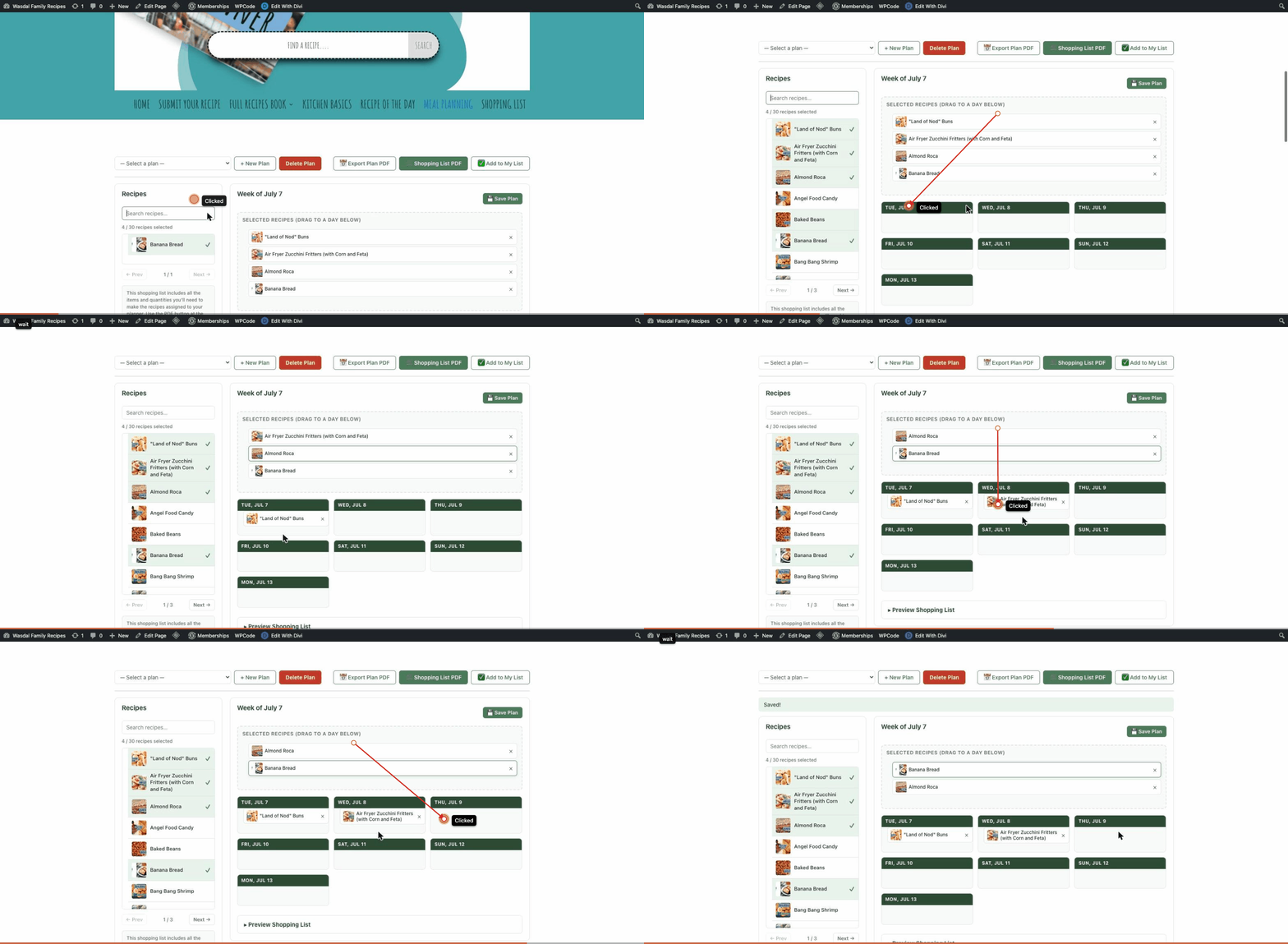
Quick Reference Card:
Action | How to do it |
Create a plan | Click + New Plan, fill in the name and dates, click Create Plan. |
Select a recipe | Click a recipe in the sidebar — a green checkmark confirms it's selected. |
Search recipes | Type in the Search recipes... box above the sidebar list. |
Assign to a day | Drag the recipe card from the SELECTED RECIPES area onto a day column. |
Rearrange recipes | Drag a recipe card from one day column to another. |
Remove a recipe | Click the × icon on any recipe card in a day column or the staging area. |
Save the plan | Click the green Save Plan button (top-right of the calendar panel). |
Export plan PDF | Click Export Plan PDF in the toolbar. |
Shopping list PDF | Click Shopping List PDF in the toolbar. |
Add to My List | Click Add to My List in the toolbar. Confirm in the green banner. |
Preview list | Scroll to the bottom of the planner page and expand Preview Shopping List. |
View Shopping List | Click SHOPPING LIST in the top navigation menu. |
Save list as PDF | On the Shopping List page, click Save as PDF. |
Delete a plan | Click Delete Plan (red button) in the toolbar and confirm. |
Introduction
The Meal Planner is a members-only tool on Wasdal Family Recipes that lets you organise your week's cooking, build a consolidated grocery list, and export everything to PDF — all without leaving your browser.
This guide walks you through every step, from opening the planner for the first time to printing your shopping list for the grocery store.
What you can do with the Meal Planner:
- Create named weekly or custom meal plans
- Browse all site recipes and select the ones you want to cook
- Drag and drop recipes onto specific days of the week
- Preview a consolidated ingredient shopping list for your plan
- Export a printable PDF of your weekly plan
- Generate a shopping list PDF directly from the planner
- Push all plan ingredients to your personal Shopping List for checking off at the store
- Edit, update or make new Meal Plans or delete old plans to create more storage room.
📝 Note: You must be a registered member and logged in to use the Meal Planner and Shopping List tools. If you're not yet a member, see the Appendix at the end of this guide for instructions on creating an account.
The Meal Planner is a dedicated page on the site. You can reach it in two ways:
- Click MEAL PLANNING in the top navigation menu of any page on the site.
- Navigate directly to: wasdal-family.app/meal-planning
When you first arrive (or if you have no plans saved yet), the planner shows a clean starting state. The left panel lists all site recipes; the right panel has a plan selector and action buttons at the top.
- If you haven't already, click the +New Plan button and give your plan a name (i.e.: July Week 4, or Summer Menu) and select the plan type and start date.
- You can search for or select recipes in the left panel by clicking them (they'll appear wiht a green check mark beside their name and pop into your drag and drop staging area at the top.)
- Drag and drop your selected recipes into your days of the week planner below the staging bar.
- Click the green Save Plan button.
After assigning recipes to days, your calendar will look something like this:
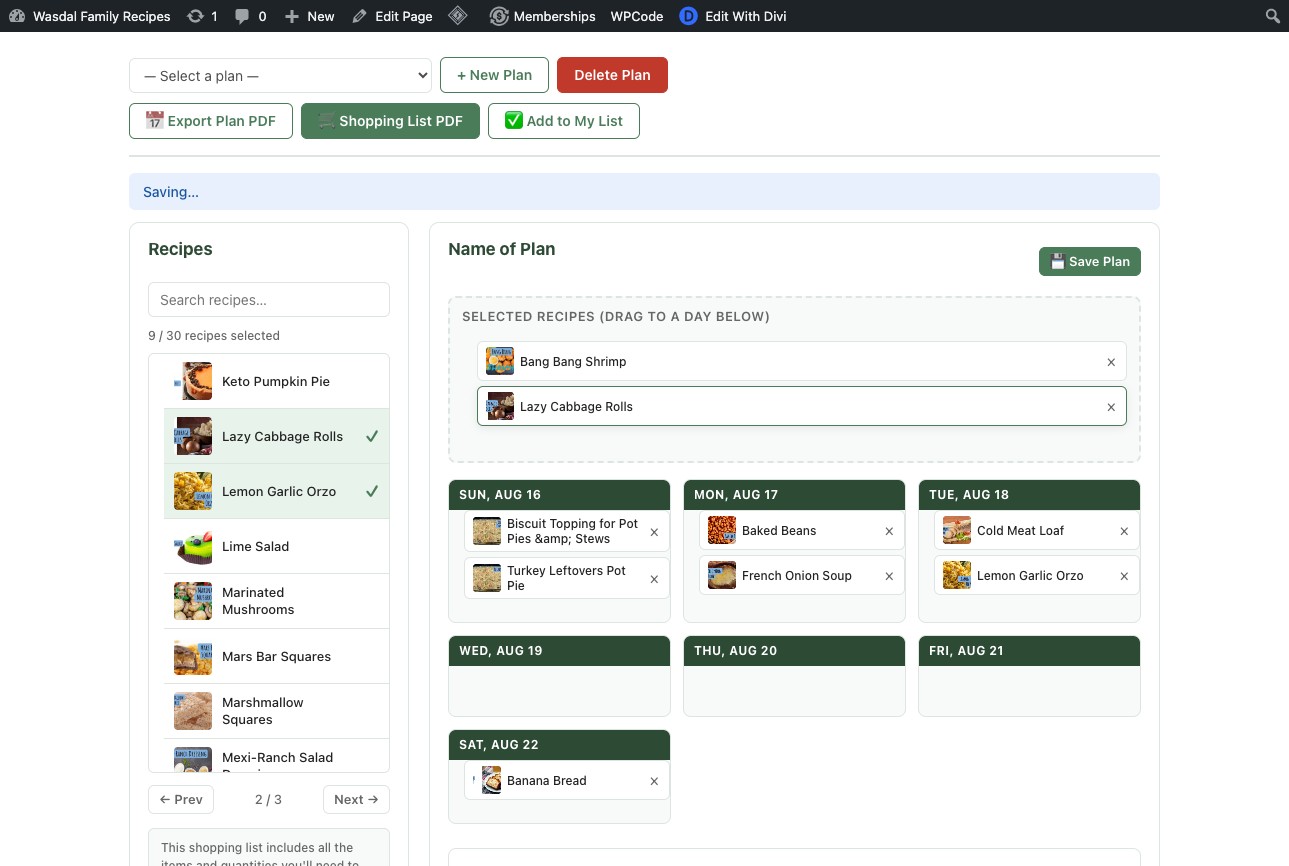
Now you're ready to manage your list(s) and get ready for the grocery store
In any individual recipe you view, as well as the meal planner page, you'll have the option to Add to My List. All ingredients in a single recipe are checked by default and will be added to your shopping list when you click the button. You can clear the check mark to avoid having it added to your list.
On the Meal Planning page, clicking this button will consolidate the ingredients for ALL the recipes you've assigned to days in your Meal Planner and will transport the whole list of ingredients to your Shopping List.

Managing your list on the Shopping List page
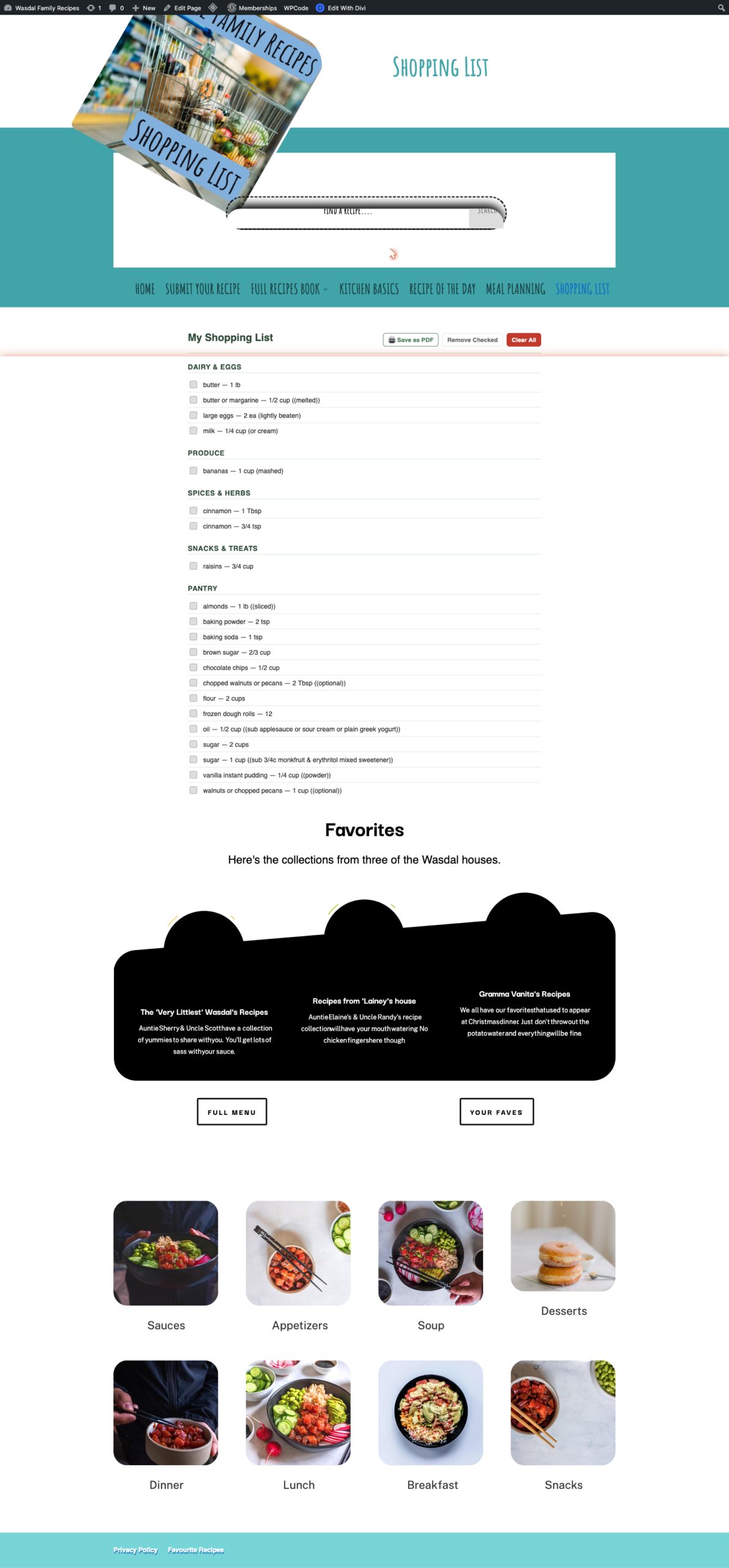
- Check off items: Tick the checkbox next to an item as you pick it up in the store.
- Remove Checked: Click this to delete items you have on hand already, keeping only what you still need.
- Clear All: Click Clear All (red button) to wipe your entire list and start fresh.
- Visit the Shopping List page to edit your final list and remove items that you already have on hand.
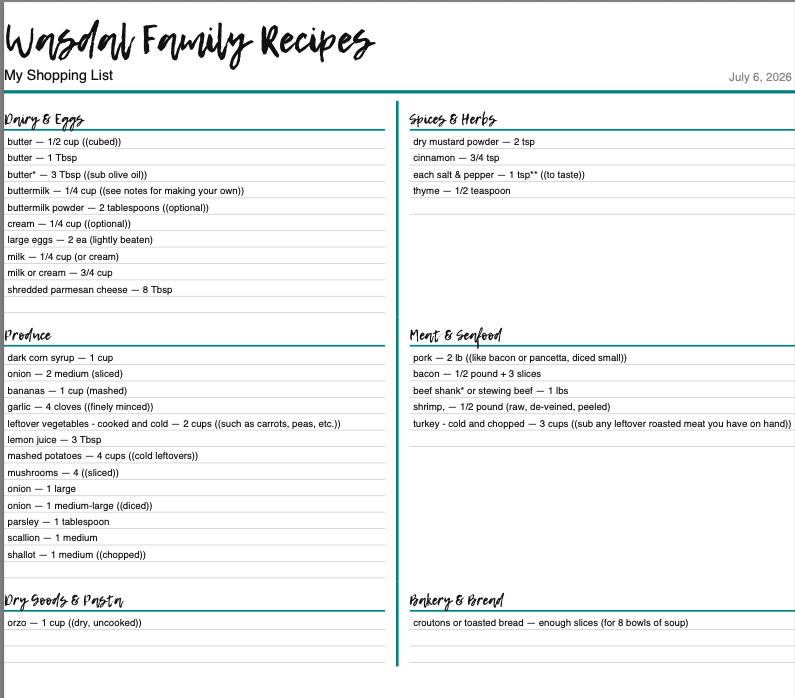
- Click the Shopping List PDF button to get a copy of your grocery list, prganized by store department
From the Shopping List page you can generate a clean, printable PDF of your personal list at any time. This is useful for going paperless or sharing the list with someone else.
- Navigate to your Shopping List page (SHOPPING LIST in the nav menu).
- Click the Save as PDF button at the top right of the list.
- Your browser downloads a PDF file of your current shopping list, categorised and ready to print or share.
💡 Tip: You can also use your browser's built-in File > Print > Save as PDF option on the Shopping List page if you want a precise print preview before saving.
The PDF is pre-organized and consolidated by departments found in the grocery store.
Creating an Account
The Meal Planner and Shopping List are available to registered members only. If you don't yet have an account, follow these steps to sign up.
- Navigate to wasdal-family.app/register in your browser.
- Fill in the registration form:
- Username — choose a unique username (letters, numbers, hyphens).
- Email Address — enter a valid email address. Your login details will be sent here.
- Password / Confirm Password — choose a strong password of at least 8 characters.
- Click Register
- Choose a membership plan — the page will now show available subscription options with pricing details.
- Enter your payment details to complete the subscription (credit card processed securely via Stripe).
- Click the Subscribe button.
After registration and payment set up, you'll automatically be logged in and can start using the Meal Planner and Shopping List tools.
📝 Note: If you already have an account but forgot your password, use the Forgot Password link on the login page to reset it via email.